

| Website | adobe.com/express/ |
| Tools | Video Editor AI Image/Video Generator Remove Background Resizer Crop Convert to MP4 Captions |
| Price | $9.99/Month |
| Free Trial | Yes |
| Alternatives | VEED & InVideo |
| Pros | ✔ All-in-one tool ✔ Huge library of templates and stock media ✔ One-click AI features ✔ User-friendly interface ✔ Social media scheduling |
| Cons | ✘ Web-based app performance varies ✘ AI credit limitation with the free account ✘ Can’t combine ‘Remove Background’ and ‘Generative Fill’ actions |

4.5 out of 5
Summary
Great all-in-one tool with strong templates and easy AI features, but limited free credits and some performance issues.
As a video editor, I’m always testing new tools to see which ones actually make the content-creation process faster and easier.
In this review, I put Adobe Express through its paces and break down its tools, pricing, features, and overall workflow based on real, hands-on use.
Plus, you can grab a 30-day free trial of the Premium plan, which gives you everything you need to quickly create and share eye-catching graphics, photos, and videos 🙌
What is Adobe Express?
Adobe Express is an all-in-one tool for creating quick photos, videos, and social content. Its standout feature is the Firefly-powered AI, which lets you add, replace, or remove objects and generate images from text prompts with a single click.
You also get access to a huge library of templates and stock media, plus simple layer-based editing for videos, graphics, and animations. Whether you’re making social posts, short videos, or basic promos, Adobe Express gives you a lot of creative power without the learning curve.
How Does It Work?
You can use Adobe Express on your desktop browser or through the mobile app, and your projects sync between both, which is great for editing on the fly.
Since it’s a web-based app, performance can vary, especially with large or complex projects. Still, for most everyday edits, it runs smoothly.
Here’s how to get started:
- Head to the Adobe Express homepage
- Click “Get Adobe Express Free”
- Create an account
- Confirm your email
- Start creating!
There’s a free version with a limit of 25 AI credits, but you still get access to a lot of tools and stock media. If you want the full feature set, there’s also a 30-day trial of the Premium plan.
Features
Adobe Express includes a wide range of tools for creating photos, videos, graphics, and social content. For this review, I’m mainly focusing on the photo and video editing features, since that’s where creators spend most of their time.
Quick Actions
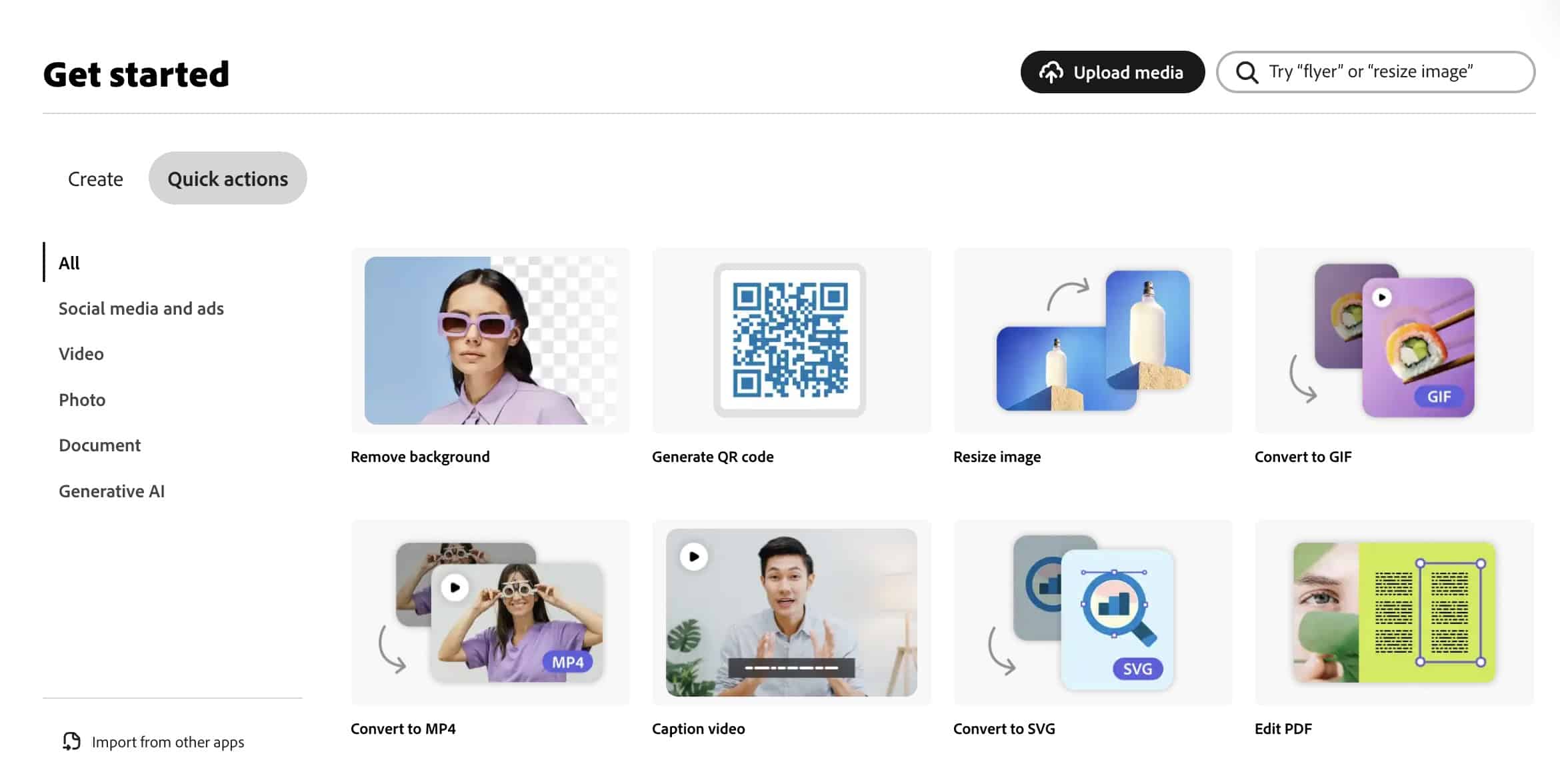
Quick Actions are one-click tools that handle common tasks fast—perfect when you don’t want to dive into a full editing timeline. They cover things like:
- Remove Background
- Resize images or videos
- Merge videos
- Add captions
- Convert to MP4
- Animate from audio
They’re simple, fast, and surprisingly powerful for quick edits.
Photo Editing
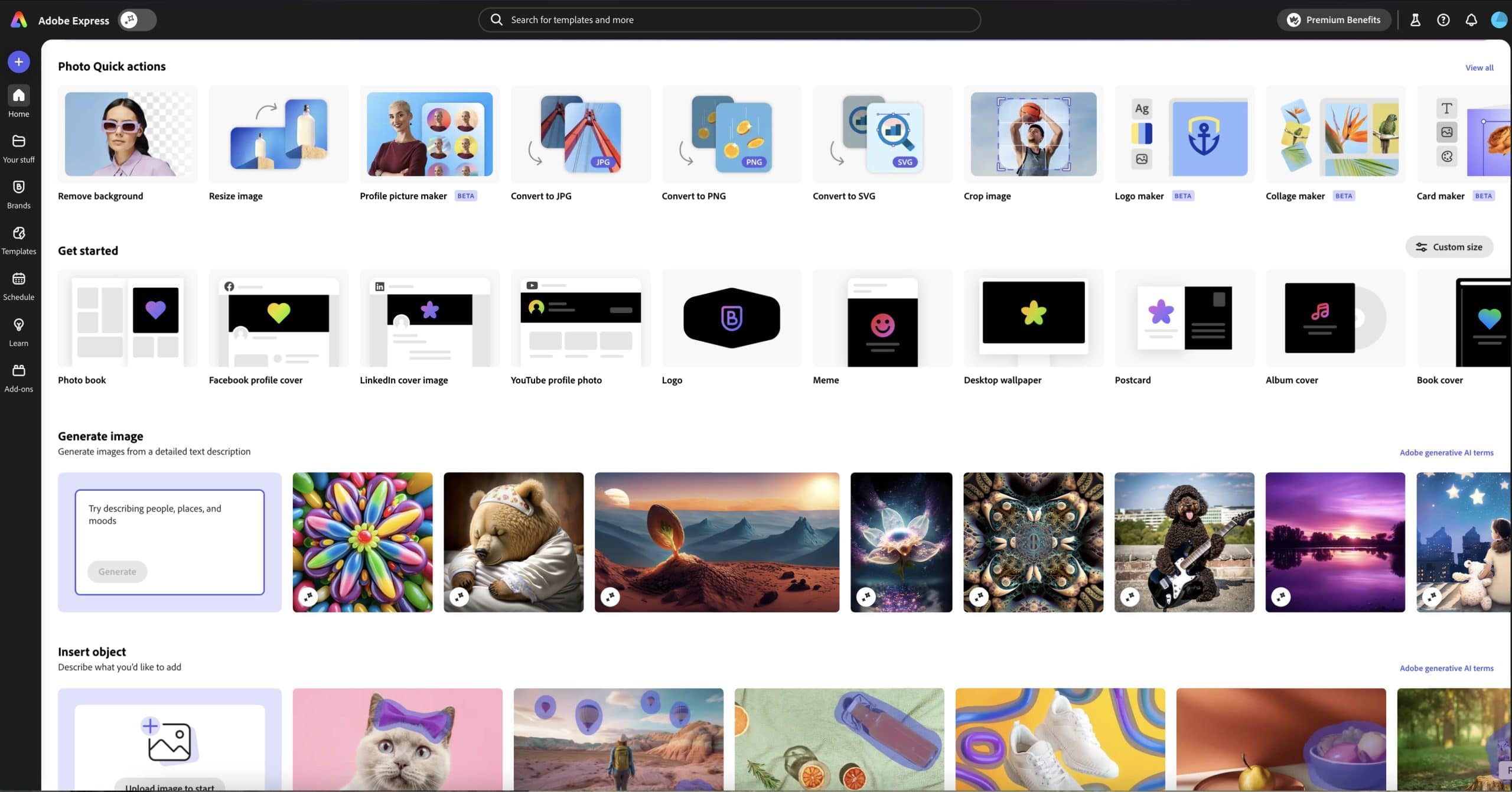
Adobe Express makes photo editing easy, whether you’re uploading your own images or pulling from Adobe’s huge stock library. You can crop, adjust, and enhance photos quickly without any real learning curve.
The AI tools are the real highlight. Text to Image generates new visuals from a simple prompt, and Remove Background cuts out subjects with one click. Generative Fill lets you erase, replace, or add objects using a basic brush—great for quick cleanups or creative tweaks.
The only limitation: you can’t use Remove Background and Generative Fill together if you’re using Quick Actions. For that, you’ll need the full editor.
Video Editing
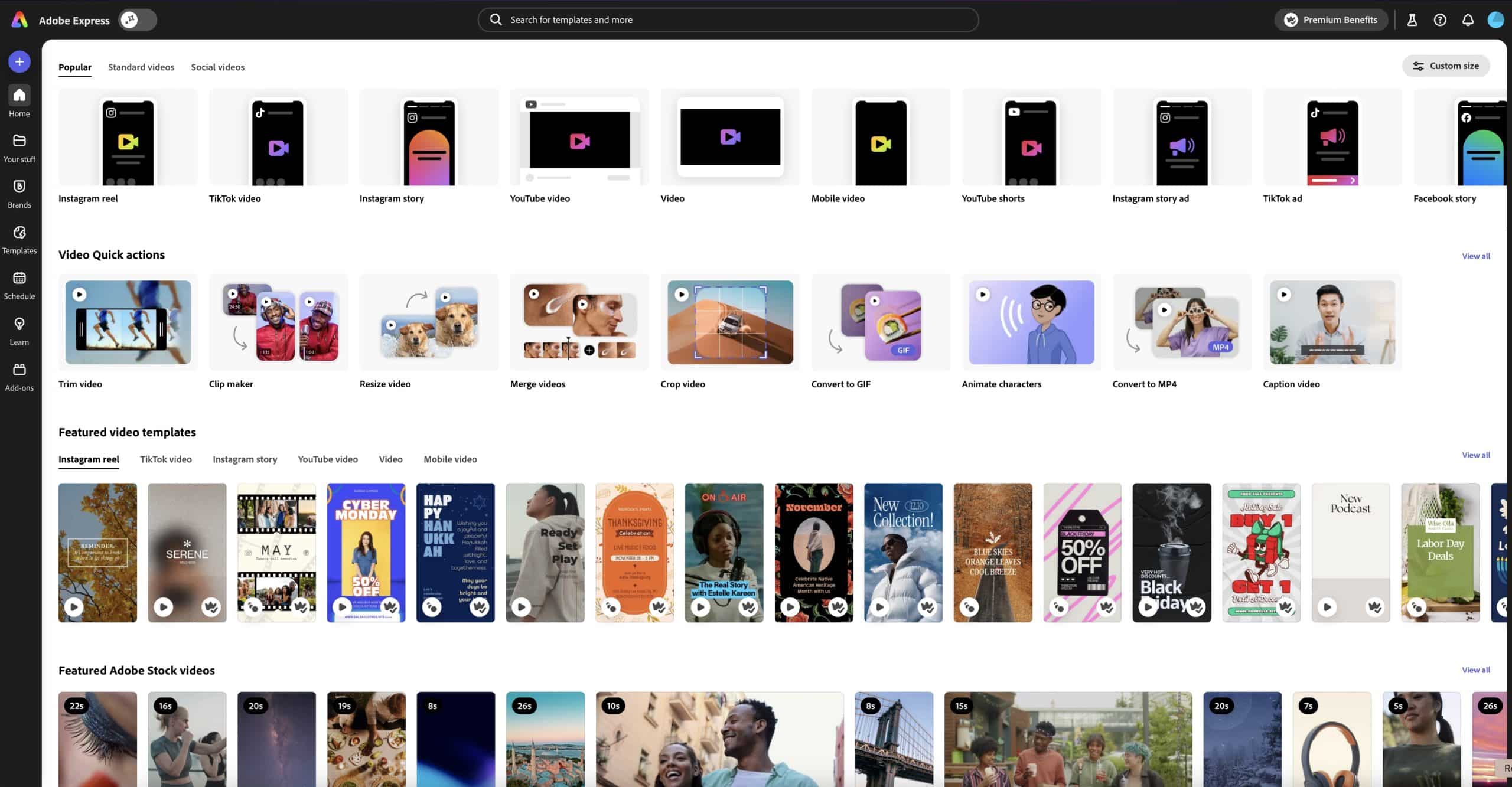
The app offers a strong set of tools for quick video edits. You can merge clips, add captions, crop, resize, convert formats, and pull from a large library of stock footage.
One standout is the Remove Background feature, which also works on video. It’s a huge time-saver when you need clean cutouts without jumping into more advanced software.
You can layer in graphics, titles, and animations on a simple timeline. Each layer is fully adjustable (similar to Photoshop), so you still get plenty of control even if you’re not an experienced video editor.
Resizing
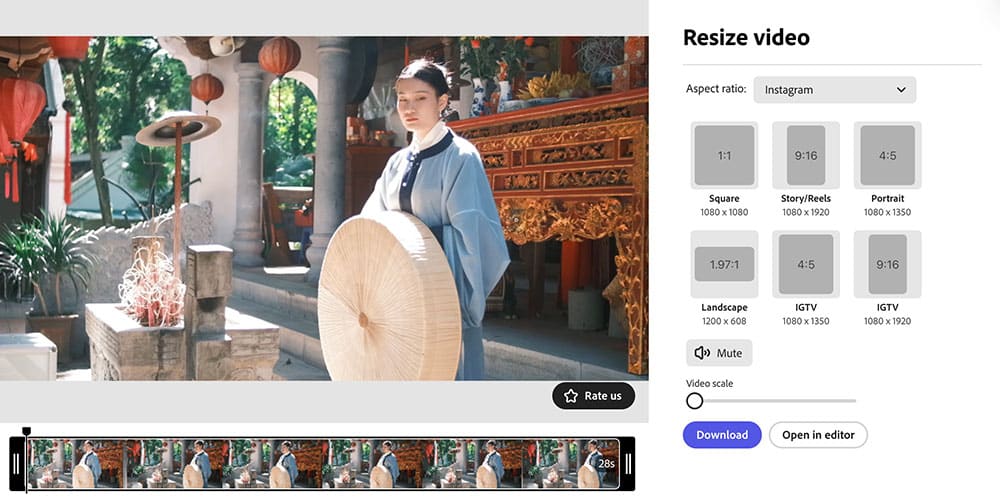
The Resize Video tool (available in the Premium plan) is one of the most useful time-savers. After finishing a 16:9 video, you can instantly convert it into another format (like vertical or square) without rebuilding the whole layout.
This makes repurposing content for different platforms much faster and keeps everything consistent without extra editing work.
Templates
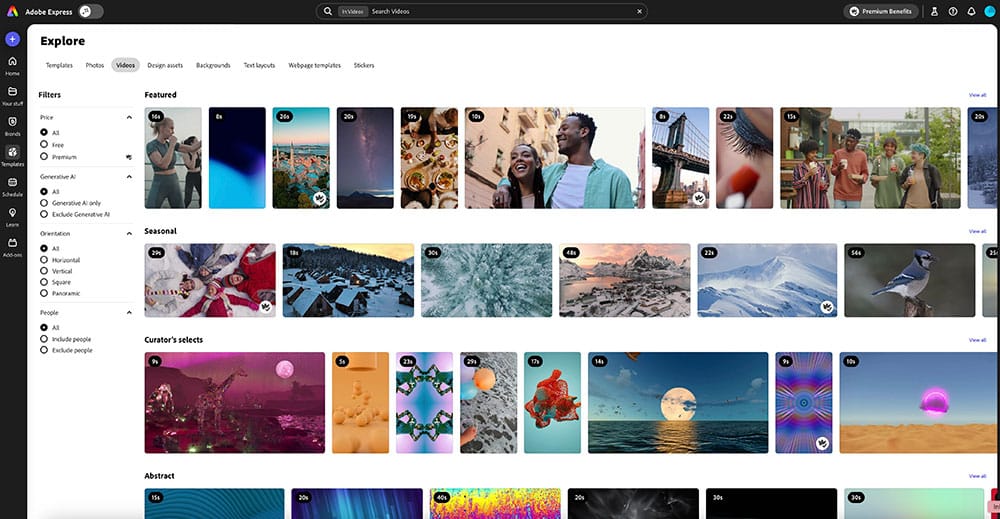
There’s a huge selection of single-page and multi-page templates, which makes it easy to create polished content fast. Whether you’re making Instagram Reels, TikTok videos, or simple promo posts, there are tons of styles to choose from.
Premium users also get access to an AI-powered prompt that can generate custom templates, which is great if you want something more unique without building a design from scratch.
Generate with Firefly AI
Generate with AI is one of the strongest features in Adobe Express, even though some options are still in beta. With Firefly built in, you can generate both images and videos directly from simple text prompts.
Generate Image creates custom visuals in seconds, with different styles and variations to choose from. Generate Video lets you turn a prompt or a still image into a short clip, with adjustable styles and camera movement.
That said, the results can be hit-or-miss, and some generations may need extra tweaking. Video generation (as with all AI) is still evolving, so quality and consistency can vary.
Scheduler
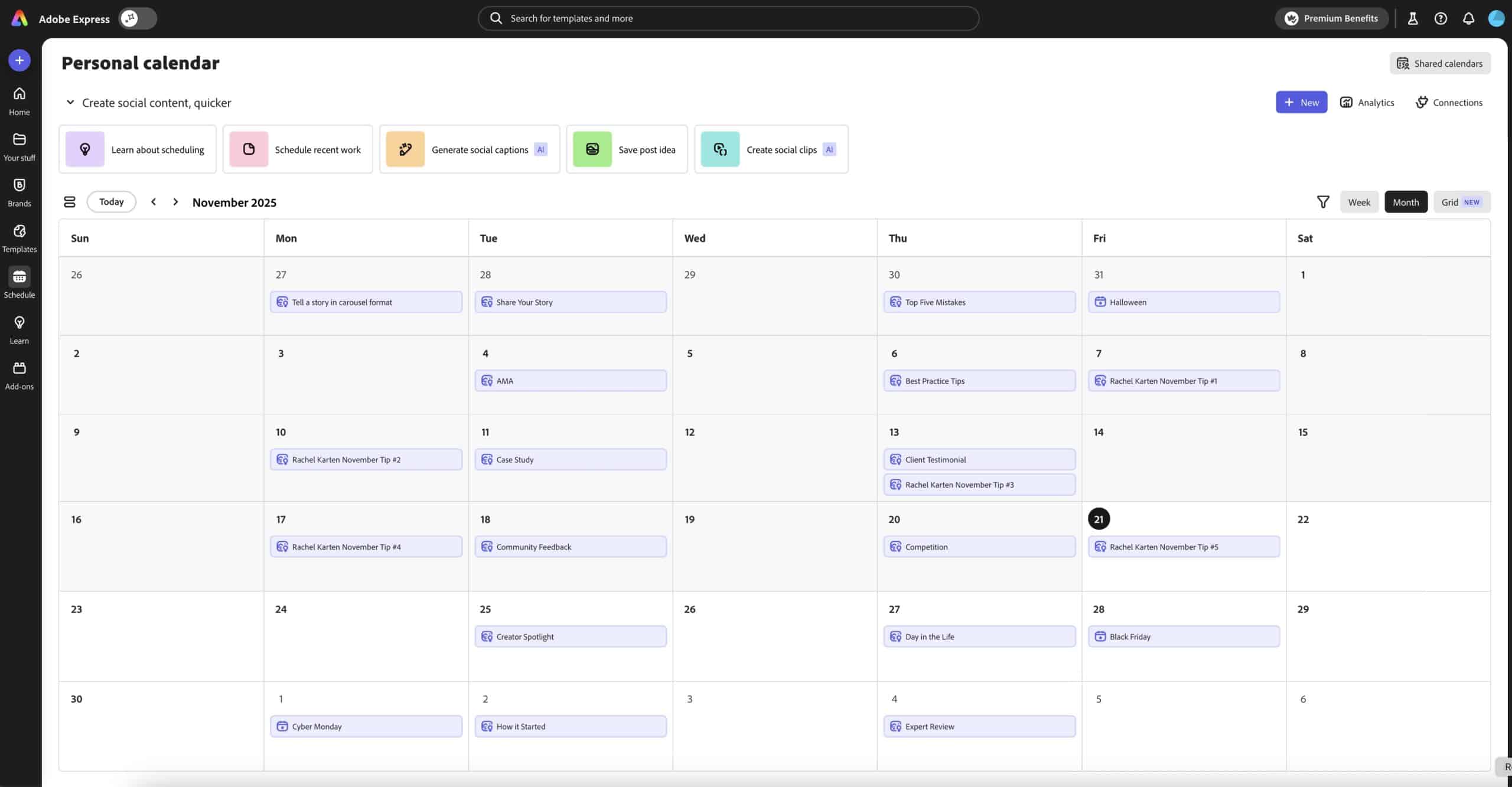
The built-in scheduler is a great tool if you’re managing a lot of content. It lets you plan and automatically post to major social platforms, complete with pre-filled dates, times, and descriptions. It’s perfect for creators who want to batch their work and stay consistent without manually posting every day.
Learn Tab
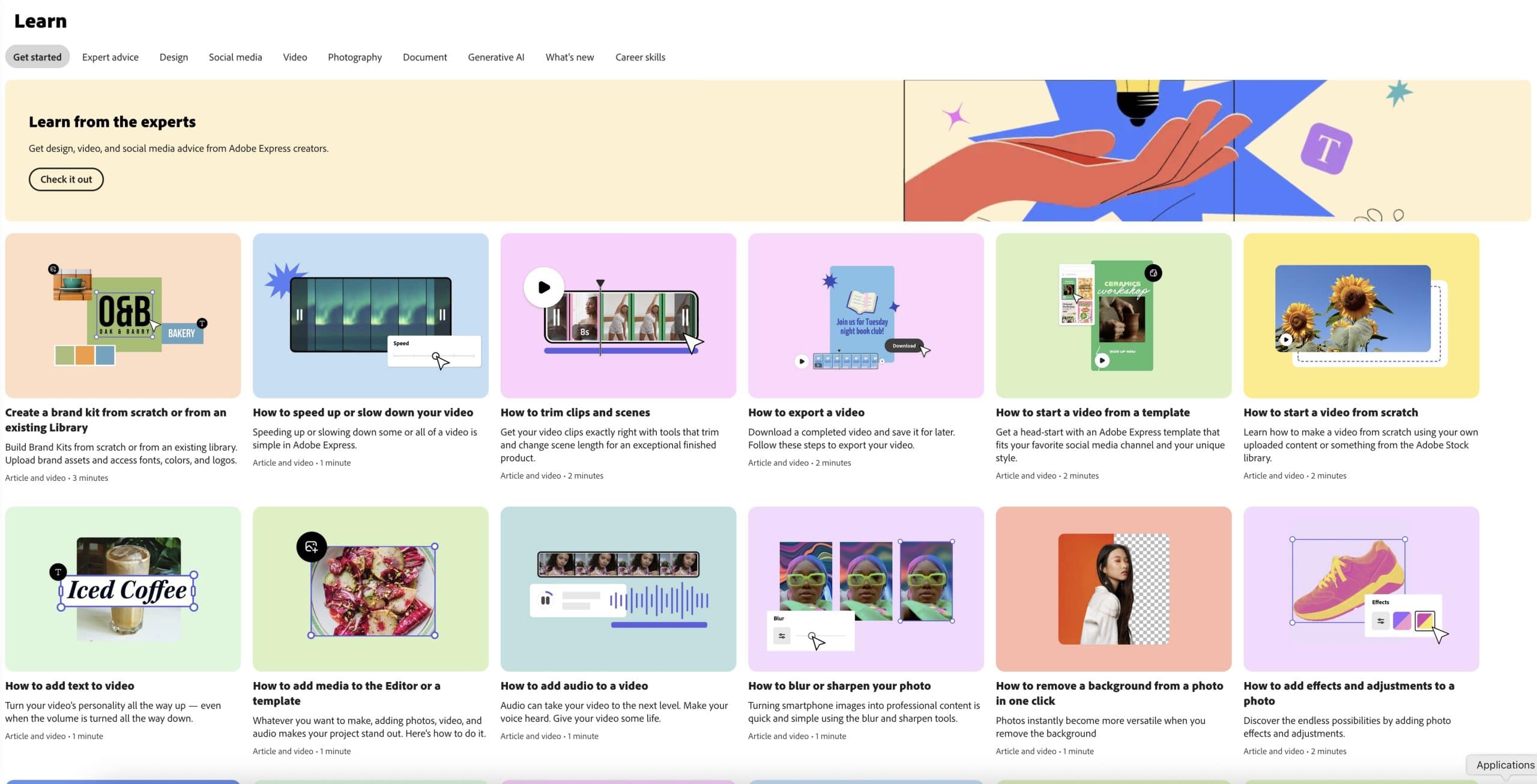
If you’re unsure about a feature, the Learn tab (the lightbulb icon) is a handy place to start. It offers short, 30-second tutorials that cover everything from design and social content to video, photography, and generative AI. You’ll also find helpful extras like hashtag tips and updates on the latest social media trends.
Collaboration
Working with others is surprisingly easy here. Instead of sending files back and forth or juggling notes over email, you can edit the same project in real time and get notified when changes are made. It keeps everything organized and saves a lot of back-and-forth.
Workflow
The easiest way to understand how Adobe Express works is to run through a quick project. Here’s the exact workflow I used in this tutorial.
Start by clicking the + icon in the top-left corner of your dashboard to create a new project.

From here, you can upload your own media or pick from Adobe’s stock library.
Select 16:9 Landscape to start with a standard YouTube-style preset.

Next, name your project in the top-left corner so you can easily find it later in Your Stuff.

On the left-hand toolbar, open Media.

In the Video tab, search for a stock clip or upload your own.
Click once on a clip to drop it into your timeline.

You’ll now see a simple timeline under the preview window. Hit Play to watch your clip.
To trim, drag the ends of the clip in the timeline.
Back in the Media panel, switch to Photos and pick an image to add.
Click once to load it into your project.

Select the image, then click Remove Background to cut it out instantly.

On the right side of the editor, you’ll see your layers—one for the video and one for the image.
Click any layer icon or select the asset in the viewer to edit it.

To add text, go to the Text tab on the left toolbar and click Add your text.
Type your text, then choose from the preset styles that appear.


To generate something new with AI, go back to Photos and open Generate Image.
Enter a prompt (like “excited drone operator holding a controller”) and pick from the generated results.

Click your chosen image, then hit Remove Background if needed.

To add graphic elements, go to Elements and search for something like “thumbs up.”
Click an icon to add it to the timeline.

You can duplicate objects using Option + drag (or right-click for more options).
Use the flip buttons in the settings panel to mirror any element if needed.

Add animations to any layer to bring your layout to life.
To extend your edit, click Add Scene in the timeline and repeat the same steps with new clips or photos.
To add transitions, click the + between scenes.

For music, go to Media → Audio, browse the tracks, and click once to add one to your timeline.
Select the track to adjust the volume.

When you’re ready, open the Export window to download or share your finished video.

Pricing
Adobe keeps the pricing fairly straightforward with three main options: Free, Premium, and Teams. Here’s a quick breakdown of what you actually get.
| Feature | Free | Premium | Teams (per person) |
|---|---|---|---|
| Price | $0 | $9.99/month or $99.99/year | $4.99/month or $49.99/year per user |
| Generative AI Credits | 25/month | 250/month | 250+/month |
| Templates | 100,000+ | All premium templates | All premium templates |
| Stock Assets | 1M+ | 200M+ | 200M+ |
| Fonts | 4,000+ | 30,000+ | 30,000+ |
| Storage | 5 GB | 100 GB | Pooled team storage |
| Version History | 10 days | 30 days | Extended |
| Scheduling | 1 account per platform | 3 accounts per platform | 3 accounts per platform |
| Advanced Tools | Basic tools only | Remove video BG, one-click resize, advanced animation | All Premium features |
| Collaboration Tools | ✘ | ✘ | ✔ |
| Brand Management | ✘ | ✘ | ✔ |
| Support | Standard | Standard | 24/7 |
You can try the Premium plan free for 30 days, and there’s also a Teams trial (about 14 days) if you want to test the collaboration tools.
If you stay on the Free plan, you can still use premium assets—they’ll just have a watermark. It’s an easy way to see how everything looks before upgrading.
Is Adobe Express Worth It or Not?
In short, yes. For most content creators, Adobe Express is definitely worth it. I like how fast it handles everyday tasks like resizing videos, removing backgrounds, or generating quick visuals without needing heavier software.
It’s great for simple, fast content. But if you need advanced editing or more control, tools like Premiere Pro, After Effects, and Photoshop are better options.


