

| Website | invideo.io |
| Tools | Online Video Editor Text-to-video AI Video Generator Auto-caption Denoise Background-removal Auto-resize AI-voice Color-correction Auto-subtitle |
| Price | $35/month or $336/year |
| Free Trial | Yes |
| Alternatives | VEED & Adobe Express |
| Pros | ✔ Affordable subscription plans ✔ Simple to learn ✔ AI features ✔ +5000 Templates ✔ Mobile app |
| Cons | ✘ Watermark on free exports ✘ Internet connection affects the app ✘ Optimized for Google Chrome |

4 out of 5
Summary
Beginner-friendly video editor with handy templates and AI features. However, performance may vary by browser, and free exports include watermarks.
In this review, I’m putting Invideo to the test, looking at its tools, features, pricing, ease of use, and overall workflow so you can see whether it’s a good fit for your project.
What Is Invideo?
Invideo is a simple, intuitive online video editing app that helps you create professional content without much experience. The company is based in Singapore and now serves millions of users in over 190 countries.
You can build videos from scratch or start with a template, stock clips, filters, titles, and transitions. It also includes a few handy AI tools that speed up the editing process.
Who Can Use Invideo?
Invideo is designed for anyone who wants to create videos quickly and without the usual hassle.
Whether you’re a YouTuber, podcaster, or marketing agency, it gives you the tools and templates to make engaging content.
So, with that out of the way, let’s take a closer look at how it actually performs.
How Does It Work?
To get a feel for how Invideo works in practice, here’s a quick walkthrough of the editing process from setting up a project to exporting your final video.
After signing in, start a new project and choose the Editor, then pick the video dimension you want (landscape, square, or vertical).

Next, you’ll be prompted to upload your own media.
For this example, we’ll start from scratch.

Once your project opens, give it a name so you can keep things organized.

To add your first clip, head to the Videos tab and search for “Buddha.”
Apply the free stock filter, then choose a clip that fits your project.

When you add the clip, the Trim window appears. Drag the handles to choose the section you want, then continue into the editor.

From here, you can scale your video using the Fit Type options above the viewer and start building your sequence.
To add text, open the Text panel on the left and customize your title or lower thirds.

You can also browse stickers, graphics, and animations in the Elements panel. Layers can be reordered on the right, just like in Photoshop, giving you good control over the layout.
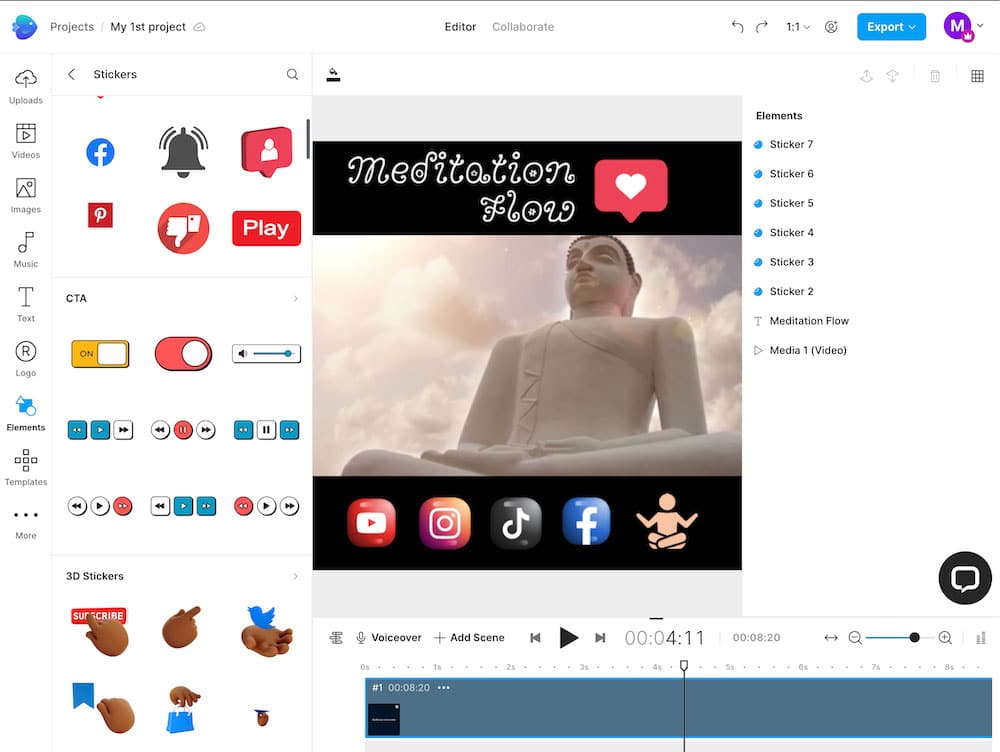
When everything looks the way you want, head to the export options to download or share your video.
Invideo also supports collaboration, so you can invite teammates to leave feedback directly on your project.

Features
Invideo comes packed with a wide range of features, but here are the ones that really stood out during testing.
Online Video Editor
To start a project, you have all the core tools right inside the Online Video Editor. Using any standard browser, you can upload your own media or browse a huge library of stock videos, music, and ready-made templates.
You also get quick access to transitions, masks, text animations, and filters, and you can edit your timeline using layers, which keeps everything organized and easy to adjust.
Drag and Drop Templates
Invideo includes more than 5,000 professionally designed templates, which makes it easy to skip the blank-canvas stage. Just pick a layout you like and customize it with simple drag-and-drop controls.
There are options for social ads, e-commerce, fashion, sales, travel, and plenty more, so it’s easy to find something that fits your project.
Built-in Stock Video Library
One of the biggest time-savers is the built-in stock library. You get access to over 8 million assets directly inside the editor, so there’s no need to jump between websites or worry about licensing.
Everything is ready to go the moment you open your project, which helps speed up the entire editing process.
Text to Video Tool
The Text to Video tool is one of Invideo’s standout features. Just paste in your script, pick a text-based template, and Invideo automatically builds a video for you using relevant stock media.
You can still swap out clips, tweak the text, or add voiceovers and music. It’s a great option when you want to create something quickly without starting from scratch.
Single Click Shortcuts
If you’ve ever wanted to remove a background or clean up an image with zero effort, the AI-powered shortcuts are a big help. These tools aren’t perfect, but they get the job done fast and work well for simple edits.
AI Video Generator
Invideo’s AI video generator lets you turn a script or prompt into a finished video in just a few clicks. It automatically selects stock clips, adds music, and builds out a full sequence.
The only real downside is that, like with most AI video generators, the results can feel a bit generic at times, so you may still want to tweak or refine the video afterward to get it looking just right.
Brand Presets
Brand Presets make it easy to stay consistent. You can save your logo, fonts, and color scheme, and apply them to any template with one click.
There’s even an option to automatically add a preloaded end clip before exporting, which is great for intros, outros, or branding bumps.
Easy Mobile App
The mobile app is another highlight. Being able to edit on the go, whether you’re traveling, on set, or just away from your desk, makes the whole workflow much more flexible.
Handy Collaboration Tools
One of my biggest problems is getting feedback from clients. However, Invideo makes this really easy with their collaboration feature.
You can share your project with clients or teammates, and they can leave timestamped comments directly on the video. It’s a quick, organized way to collaborate without long email threads or confusing notes.
Great Tutorials & Support
Invideo is clearly built with beginners in mind, and their support reflects that. They offer tutorials, blog posts, 24/7 human support, and a dedicated YouTube channel to help you get comfortable fast.
Pricing

So, how much is Invideo going to cost? They offer four plans, including a free version that’s decent for basic projects but a bit limited if you’re working more seriously.
If you want more flexibility, the Plus Plan is a solid middle ground, and the Max Plan gives you all the advanced features. There’s also a Generative Plan for users who need heavier AI tools.
Here’s a quick comparison:
| Features | Free | Plus $35/month or $336/year | Max $60/month or $600/year | Generative $120/month or $1200/year | Team $999/month or $10788/year |
|---|---|---|---|---|---|
| AI Credits | 1 credit | 10 credits | 40 credits | 100 credits | 1000 credits |
| Video Minutes | 2 mins | 50 mins | 200 mins | 200 mins | 2000 mins |
| iStock Media Assets | 0 | 95 assets | 320 assets | 320 assets | 3200 assets |
| Generative Video Allowance | 0 | 30 secs | 120 secs | 300 secs | 50 mins |
| Cloud Storage | Limited | 100GB | 400GB | 400GB | 4TB |
| Exports | 4 (Watermarked) | Unlimited | Unlimited | Unlimited | Unlimited |
| Template Library | Limited | Full Access | Full Access | Full Access | Full Access |
| AI Tools | Limited | Basic AI Tools | Advanced AI Tools | Full AI Suite | Full AI Suite |
| Best For | Testing the platform | Solo creators | Frequent creators & small teams | Heavy AI users | Big companies |
That said, it’s worth trying the free version first to see how you like the workflow before committing to a subscription.
Is Invideo Worth It or Not?
In short, yes. Invideo is a great option for anyone who wants to create polished videos quickly without dealing with complex software. The templates, AI tools, and built-in stock media make editing fast and beginner-friendly.
However, like all online apps, it’s dependent on your internet connection, so it can slow down if it’s bad. Also, keep in mind that exports on the free version include a watermark. Lastly, if you’re looking for something more advanced, then I’d recommend Premiere Pro or Final Cut.


