

| Website | veed.io |
| Tools | Video Editor Screen Recorder Live Streaming Subtitles AI Video Generator AI Dubbing Audio Cleaner Templates Progress Bar Maker Waveform Generator Video Compressor |
| Price | $13 |
| Free Trial | Yes |
| Alternatives | Invideo & Adobe Express |
| Pros | ✔ Easy-to-use tools ✔ Large library of templates and stock assets ✔ AI features ✔ Cloud-based ✔ Easy team collaboration ✔ Works on any device |
| Cons | ✘ Web app can be slow depending on your connection ✘ No advanced editing tools |

4 out of 5
Summary
Beginner-friendly video editor with templates and simple tools, but performance varies by connection, and advanced features are limited.
As a video editor, I’m always testing new tools to see which ones actually make the editing process faster and easier.
What Is VEED?
VEED is a web-based video editing platform you can use on your phone, tablet, or computer — super handy if you’re jumping between devices.
It’s designed to make editing fast and straightforward. The platform was created by a London-based startup with one clear mission: give creators simple, powerful tools that work with just a few clicks.
Who Is VEED For?
VEED is a good fit for anyone who wants to create videos, grow an audience, or make their content look more polished without needing pro-level software. It’s especially useful for:
• Video editors
• Content creators
• Podcasters
• Musicians
Basically, if you’re sharing videos online and want an easier workflow, VEED can help.
How Does It Work?
Signing up for VEED is quick and painless. Just follow these seven steps to get started:
- Click the link above to visit the VEED homepage.
- In the top-right corner, hit Sign Up.
- Enter your email address to get a Magic Link.
- Check your inbox, open the email, and click Login.
- You’ll automatically get access to a Free Plan account.
- Fill in your Name, Workspace, Basic Details, and choose your Account Plan.
- That’s it — you’re in!
Once you’re set up, you can start exploring the tools and building your first project.
Features
VEED comes packed with a lot of tools, which can feel overwhelming at first. To keep things simple, here are some of the features creators tend to use the most.
Resizing Content
Keeping track of different aspect ratios for each social platform can be a headache. VEED’s resizing tool makes it easy to switch between landscape, square, and vertical formats without re-editing your whole video.
Subtitles
Subtitles are essential for accessibility and engagement, but doing them manually is slow. VEED can auto-generate subtitles (depending on your plan), translate them, and apply preset styles. You can still edit the script if you need to, which helps you reach a wider audience.
Templates
If you don’t want to start from scratch, VEED has a variety of templates you can drop your clips into. You can also add emojis, stickers, shapes, filters, and adjust video speed. You can explore even more tools on their site if you want additional options.
Team Sharing
Working with a team can get messy when files are scattered across different drives and versions. VEED keeps everything in one place so everyone can access the latest project. Team members can also comment directly on the video, making feedback clear and organized.
Tutorials and Support
If you’re new to the platform or need help, VEED offers plenty of guidance. Their YouTube channel, VEED STUDIO, is full of quick tips and best practices. They also provide 24/7 support and detailed step-by-step guides on their blog.
New AI Tools
VEED has also added several AI-powered tools to speed up editing and help creators produce content more efficiently. Here are some of the key new features:
- AI Editing Tools — Automatically clean up footage, remove pauses, or edit your video by simply editing the transcript.
- Smart Clip Creation — VEED identifies key moments in longer videos and creates ready-to-post clips for TikTok, Reels, and Shorts.
- AI Dubbing & Translation — Generate voiceovers in multiple languages with automatic lip-syncing and built-in translation.
- AI Text-to-Video — Create videos from scripts or prompts using AI avatars and voiceovers—handy when you don’t want to film.
- Improved Team Workflow Tools — Better sharing, version control, and collaboration features for creators working with teams or clients.
Workflow
If you’re ready to dive in, here’s a quick walkthrough on how to import footage, make basic edits, add text, and export your final video. Once you sign up, you’ll land on the main dashboard.
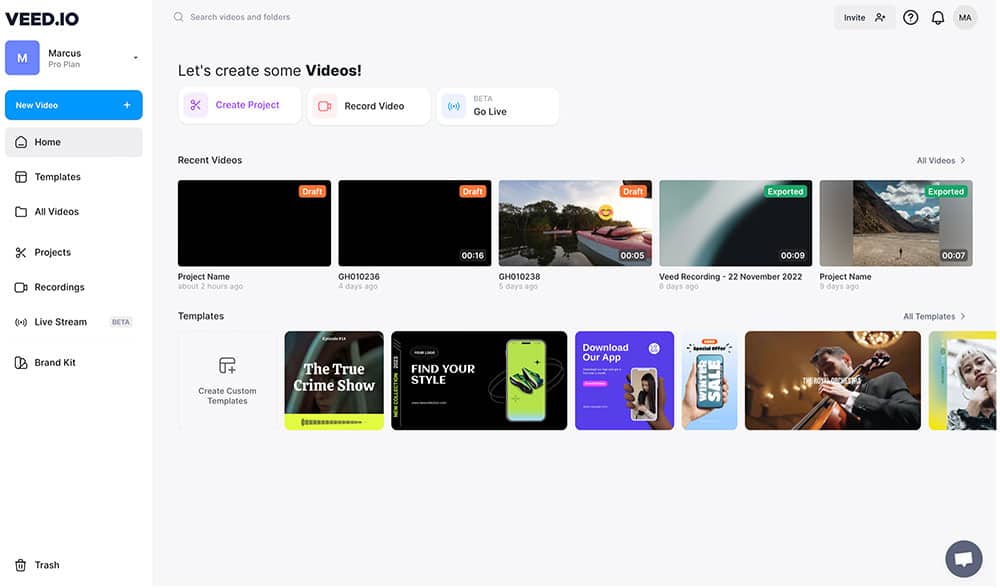
To start a new project, click Create Project in the top-left corner.
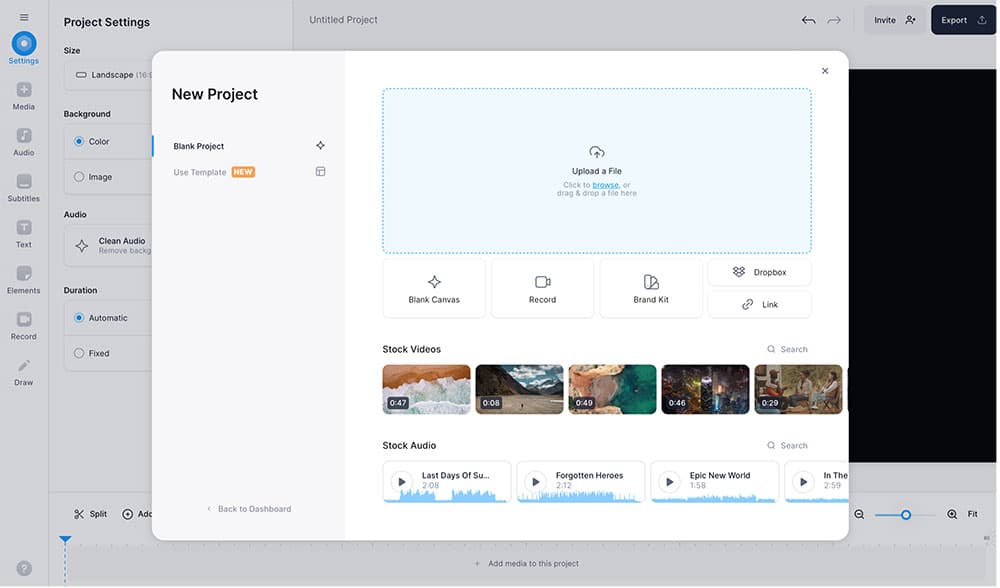
From here, you can upload footage from your device, record video or audio, or import files directly from Dropbox.
In this example, we’re uploading a clip from the computer.
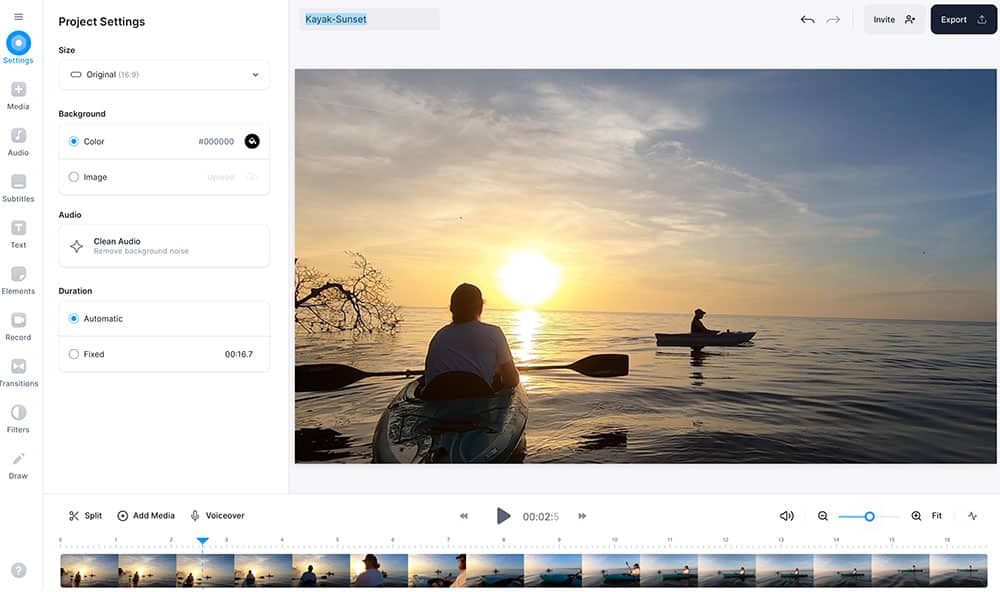
Once your video loads in the editor, give your project a Name so it’s easier to find later in your dashboard.
At the top right, you’ll see the viewer, along with any elements you add. Press play in the timeline to preview your video.

On the top left, choose the aspect ratio that fits the platform you’re creating for.
At the bottom of the screen, you’ll find the video timeline. This is where you can rearrange clips, trim footage, and adjust elements. To trim, just click and drag either side of a clip.

On the left side, the editing toolbar gives you quick access to text, audio, filters, and more. To add text, select Text and customize the color, size, and placement.
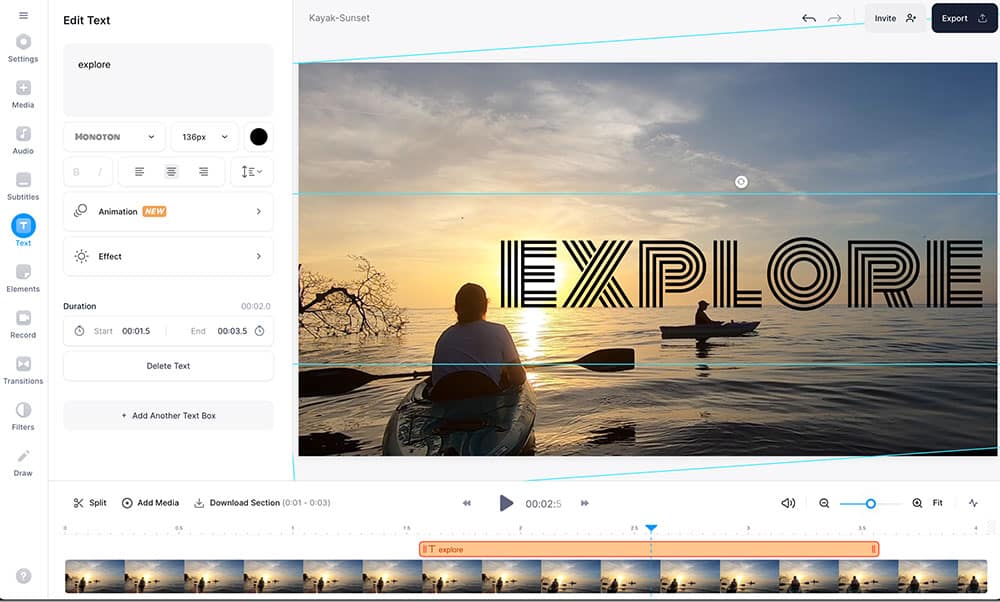
Once your edit is complete, click Export in the top right. You can choose a preset or adjust the export settings manually.

Finally, hit Export to generate your video. From there, you can download the file or share it directly to social media.
Pricing
The VEED pricing plans offer something for just about every type of creator. The nice thing is that all plans include the core editing tools, auto subtitles, unlimited projects, and unlimited rendering. Here’s a quick look at how each tier compares:
| Feature | Free $0/mo | Lite $12/mo | Pro $29/mo | Enterprise Custom |
|---|---|---|---|---|
| No Watermark | ✘ | ✔ | ✔ | ✔ |
| Max Export Quality | 720p | 1080p | 4K | 4K+ |
| Upload Limits | Limited | Unlimited | Unlimited | Unlimited |
| Projects | Unlimited | Unlimited | Unlimited | Unlimited |
| Stock Media (Video + Audio) | Limited | Standard Library | Full Library | Full Library |
| Auto Subtitles | Limited | Basic | Full Access | Full Access |
| AI Tools (Editing, Avatars, Generators) | ✘ | Basic | Full AI Suite | Full AI Suite |
| Translation & Dubbing | ✘ | ✘ | ✔ | ✔ |
| Brand Kit | ✘ | Basic | Advanced | Multiple Kits |
| Team Collaboration | ✘ | ✘ | ✔ | Advanced + Admin Controls |
| Support | None | Standard Support | Priority Support | Dedicated Manager |
| Suitable For | Quick edits & hobby projects | Solo creators | Growing creators & teams | Businesses & agencies |
If you’re thinking about upgrading, the annual plans usually offer the best value.
Is VEED Worth It or Not?
In short, yes. VEED is a solid choice for content creators who want an easy-to-use video editor without dealing with complex software. The interface is simple, the tools are intuitive, and you can start making polished videos right away.
Just keep in mind that VEED is a web-based editor, so your experience can depend on your internet connection. On slower connections, the app may feel laggy at times, especially with larger files.
Also, if you’re an advanced editor who needs more control and advanced tools, you might be better off learning a professional program like Premiere Pro or Final Cut Pro.


